User mryassinos uploaded the image
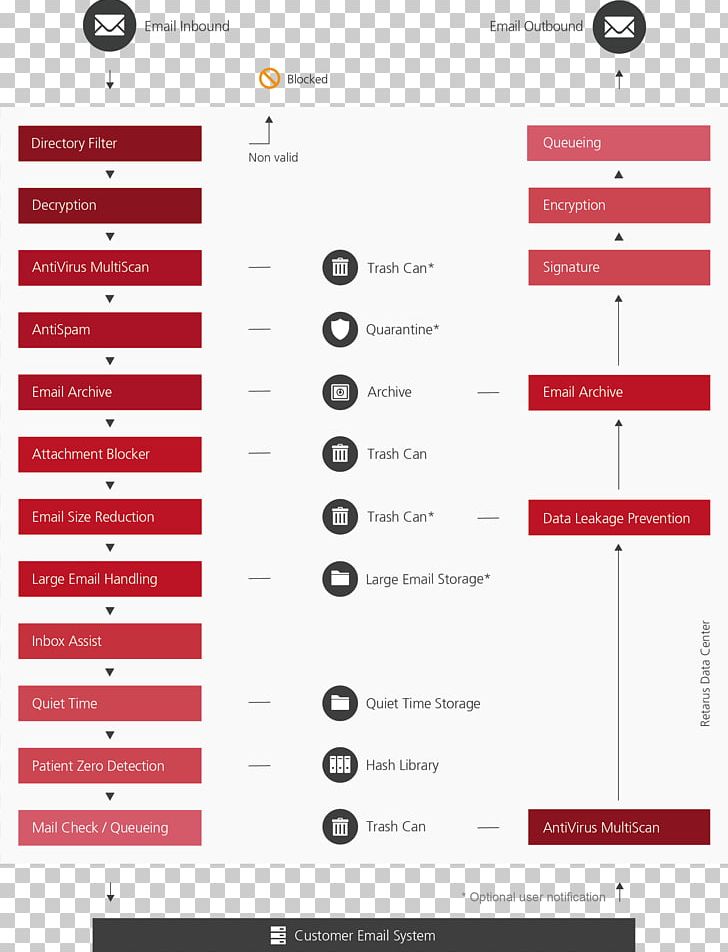
A flowchart that shows the process of creating an email inbox. It is divided into two sections - the top section is titled "Email Inbound" and the bottom section is labeled "Customer Email System". The flowchart shows the steps involved in the process, with each step represented by a red box. The first step is labeled as "Directory Filter", followed by "Decryption", "Antivirus Multiscan", "AntiSpam", "Mail Archive", "Attachment Blocker", "Email Size Reduction", "Large Email Handling", "Inbox Assist", "Quiet Time", "Patient Zero Detection", and "Mail Check & Queuing". There are also several icons representing different types of email inboxs, such as "Trash Can", "Data Leakage Prevention", "Signature", and a "AntiVirus MultiScan". These icons represent the various steps that can be taken to prevent unauthorized access to the inbox. At the top of the flowchart, there is a button labeled "Blocked" which allows the user to block out the blocked email. Below the button, there are two options - "Optional user notification" and "Customer email system".
Email Filtering SPAMfighter IBM Notes PNG
. The resolution of this PNG file is 1936 x 2541 pixels and it has a file size of 172.22 KB.A flowchart that shows the process of creating an email inbox. It is divided into two sections - the top section is titled "Email Inbound" and the bottom section is labeled "Customer Email System". The flowchart shows the steps involved in the process, with each step represented by a red box. The first step is labeled as "Directory Filter", followed by "Decryption", "Antivirus Multiscan", "AntiSpam", "Mail Archive", "Attachment Blocker", "Email Size Reduction", "Large Email Handling", "Inbox Assist", "Quiet Time", "Patient Zero Detection", and "Mail Check & Queuing". There are also several icons representing different types of email inboxs, such as "Trash Can", "Data Leakage Prevention", "Signature", and a "AntiVirus MultiScan". These icons represent the various steps that can be taken to prevent unauthorized access to the inbox. At the top of the flowchart, there is a button labeled "Blocked" which allows the user to block out the blocked email. Below the button, there are two options - "Optional user notification" and "Customer email system".
You might also like...